
Account Settings
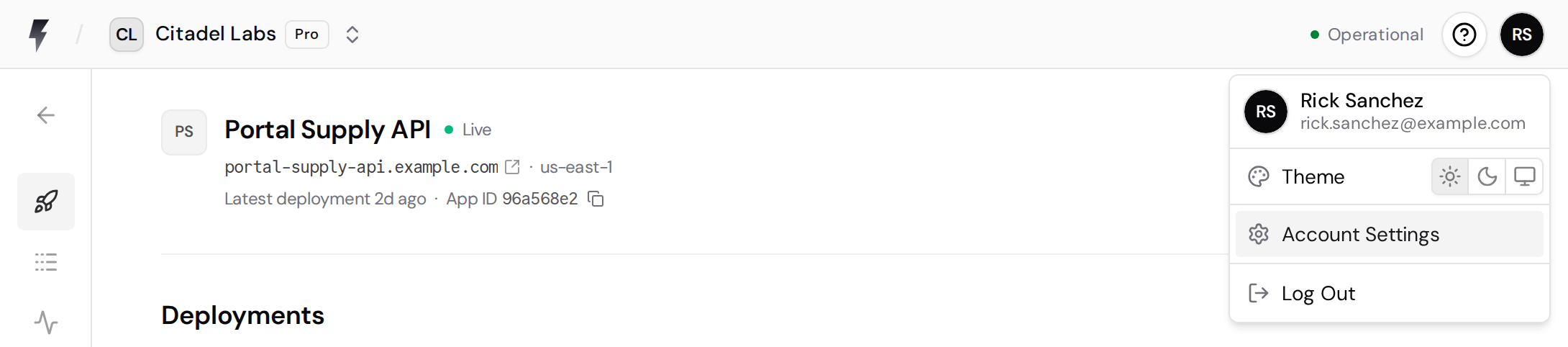
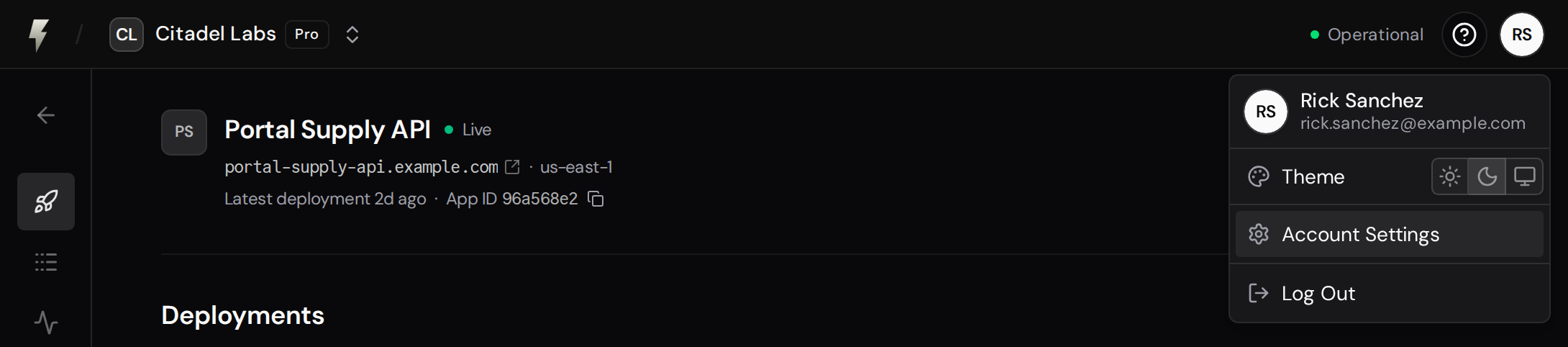
Your Account Settings cover your personal account, as opposed to your teams. Open the user menu in the top-right corner of the dashboard and select Account Settings.
Profile
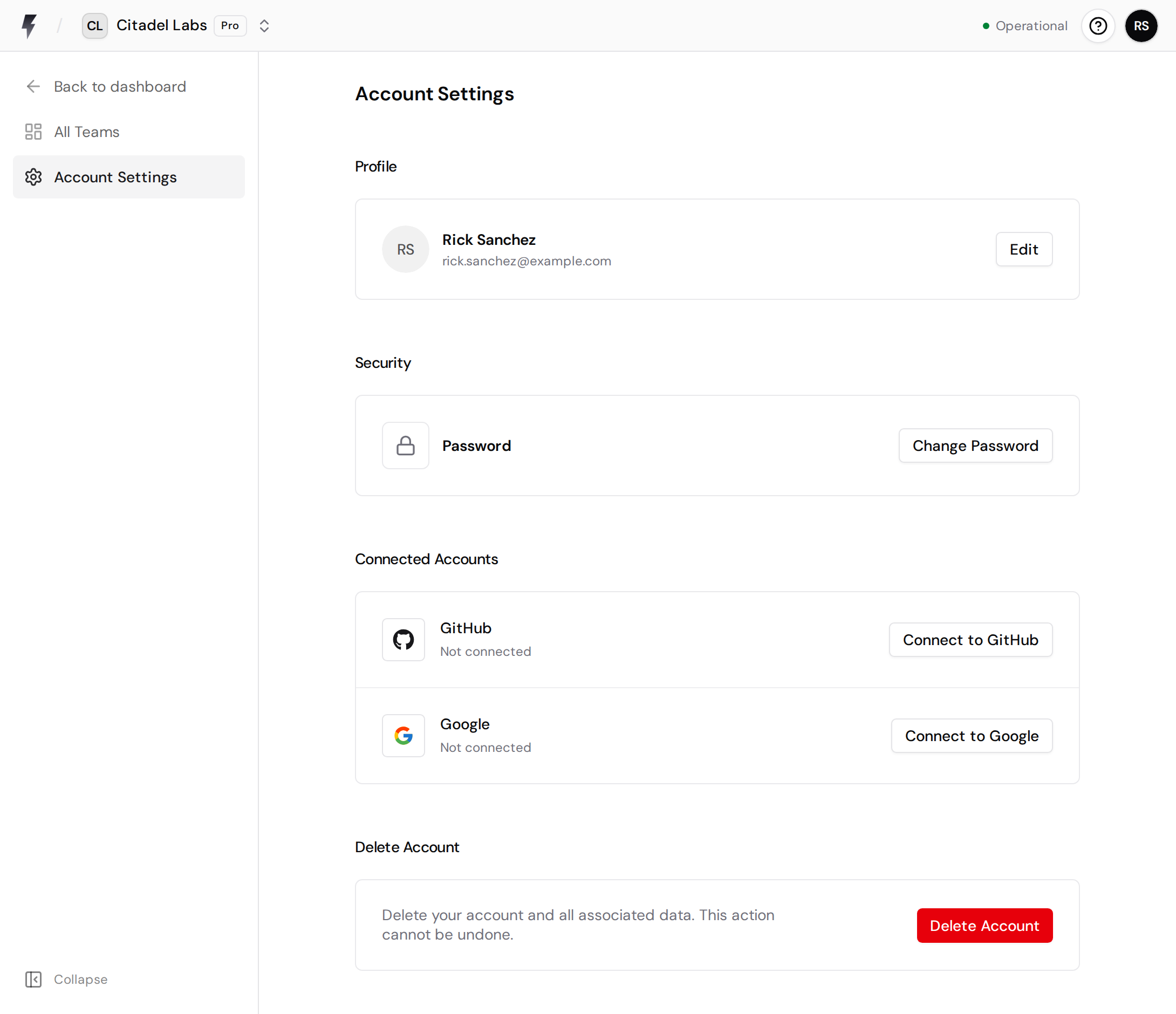
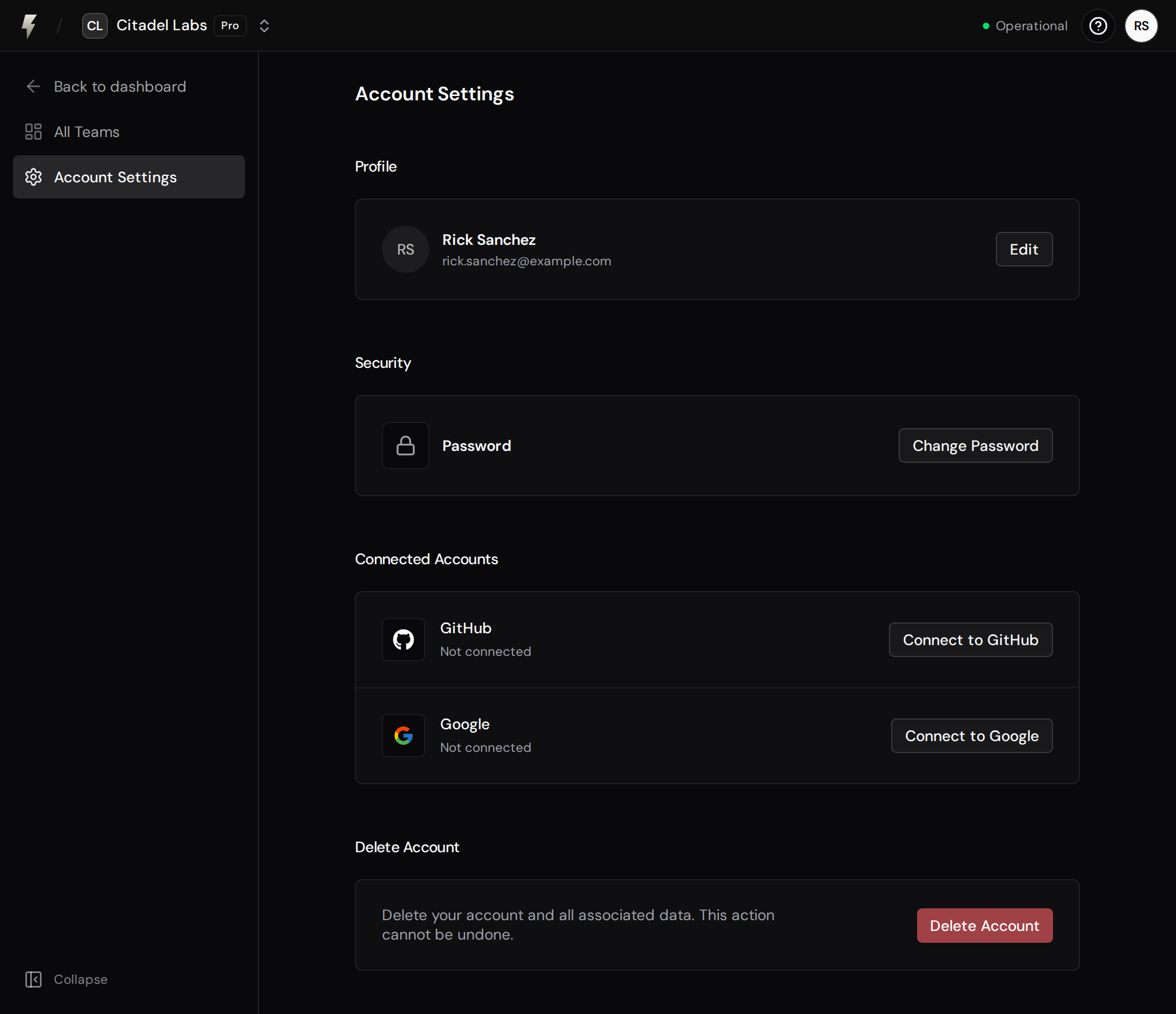
Section titled “Profile”The Profile card holds your name and email address.
- Name: click Edit, change it, and save.
- Email: click Edit and enter a new address. Changing your email requires confirmation, so a verification request is sent to the new address. The change takes effect once you confirm it from that email.
Security
Section titled “Security”Use the Security card to change your password. Enter your current password, then your new password twice to confirm it. Passwords must be at least 8 characters.
If you created your account through GitHub or Google and never set a password, this card instead offers to add a password, which lets you also sign in with email and password. You don’t need your current password in that case.
Connected Accounts
Section titled “Connected Accounts”The Connected Accounts card lets you link GitHub and Google to your account. Connecting an account lets you sign in with that provider, and connecting GitHub is also what enables push-to-deploy from your repositories.
For each provider you can:
- Connect the account if it isn’t linked yet.
- Reconnect to refresh an existing connection.
- Disconnect the account.
Delete Account
Section titled “Delete Account”The Delete Account card permanently removes your account. This cannot be undone. Deleting your account will:
- Remove you from all teams.
- Remove all apps and their deployments.
- Remove all other resources belonging to your account.
To delete your account, click Delete Account, type delete my account to confirm, and click Delete Account again.