
Supabase Integration
Connect Your Supabase Account
Section titled “Connect Your Supabase Account”- Navigate to Integrations in your team sidebar
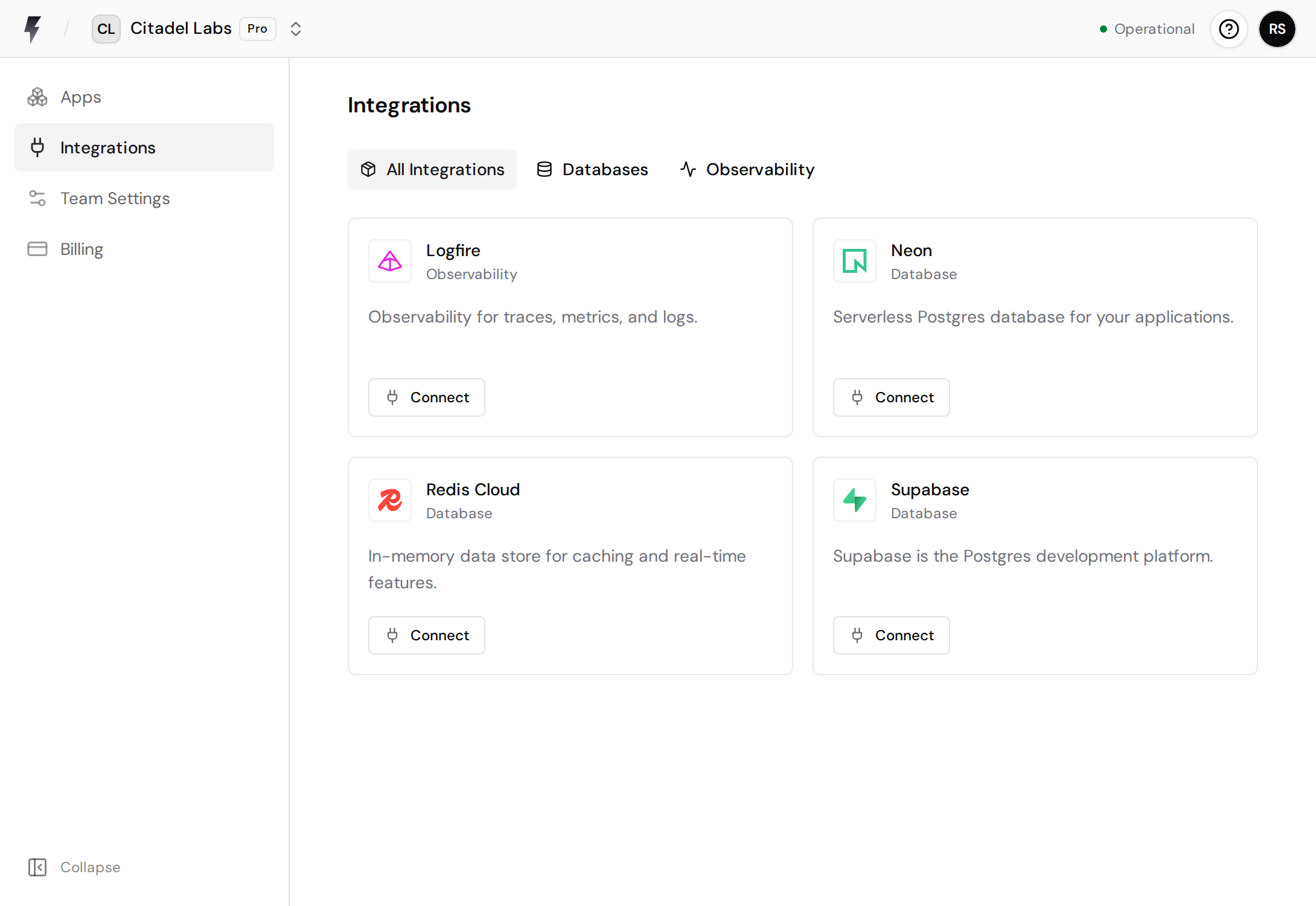
- Click Connect on the Supabase integration
- You’ll be redirected to Supabase to authorize FastAPI Cloud
- Grant the requested permissions and you’ll be redirected back
FastAPI Cloud requests read access to your projects, databases, and organizations.
Connect a Database to Your App
Section titled “Connect a Database to Your App”After connecting your Supabase account, you can link a project’s database to any app in your team:
- Go to your app’s Integrations tab in the app details and click Connect Integration
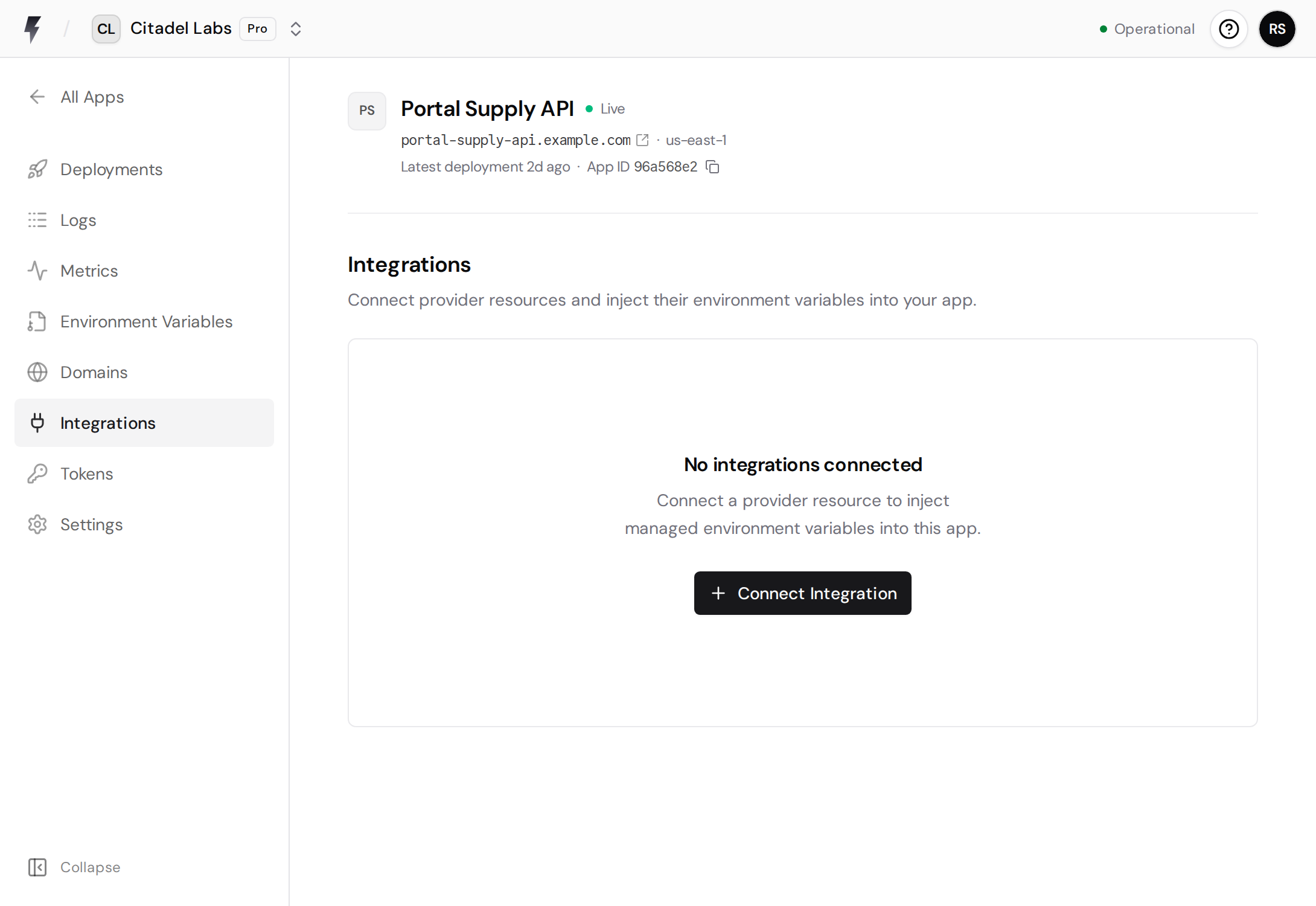
- Click Select on the Supabase integration
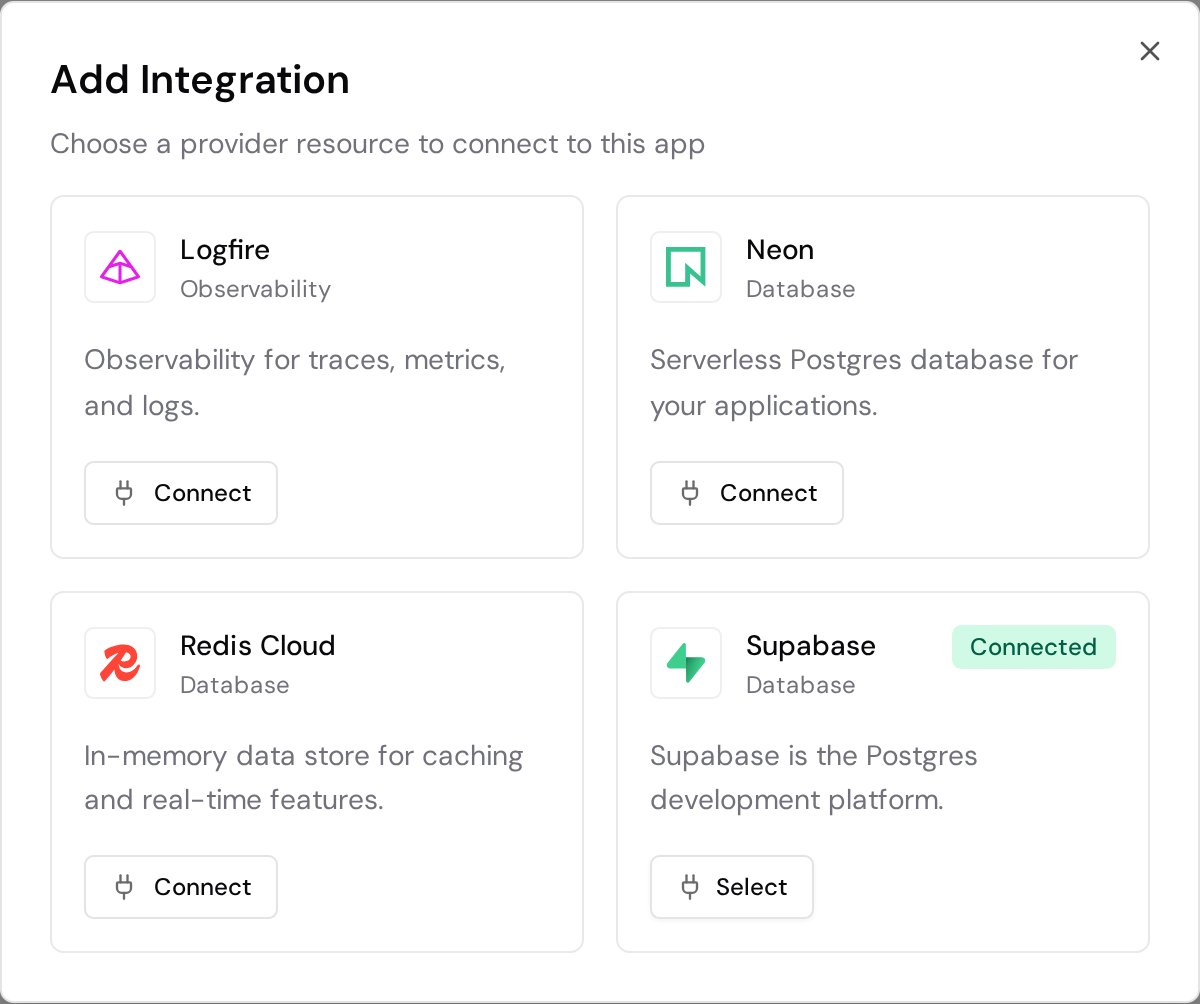
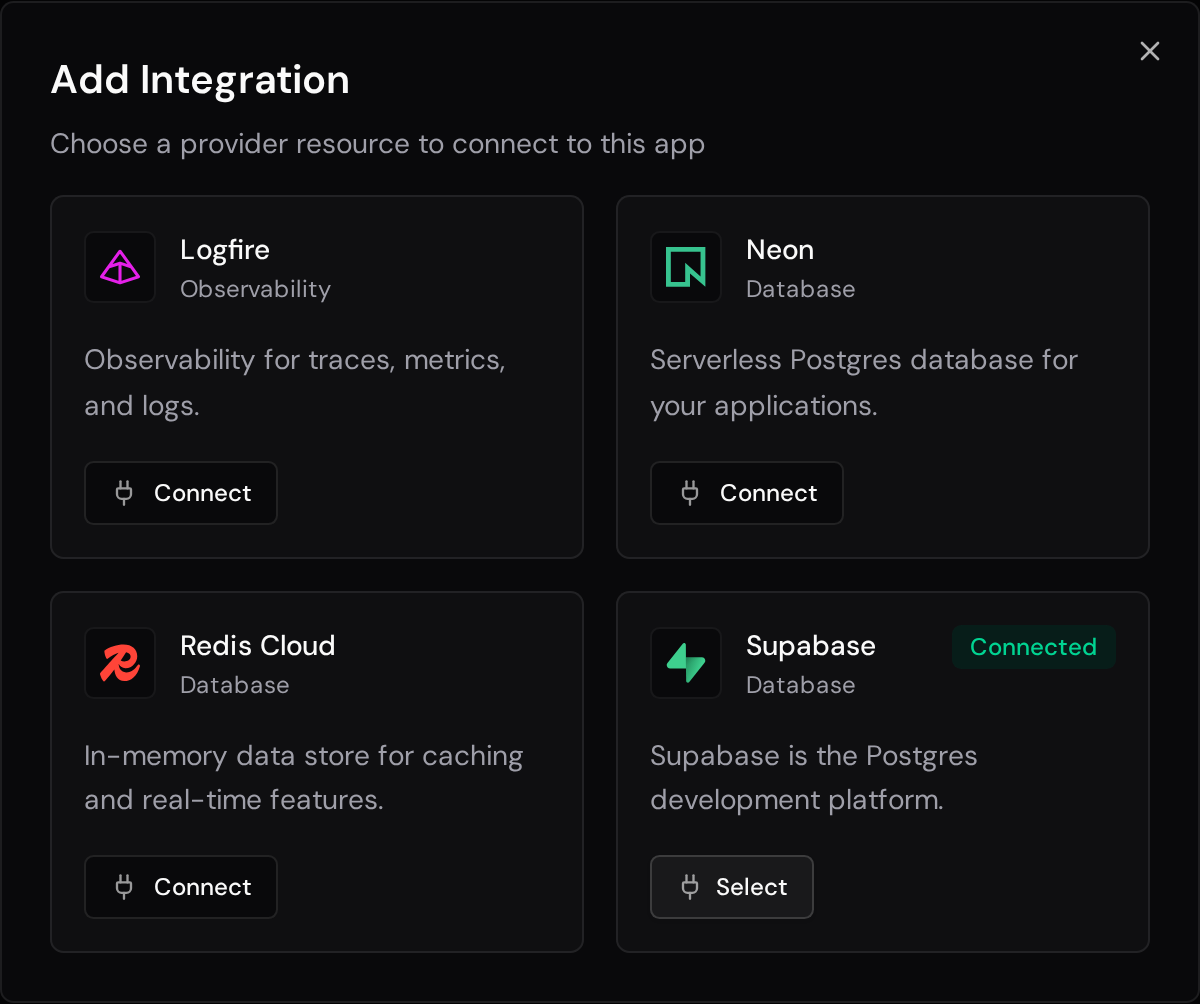
- Choose a project
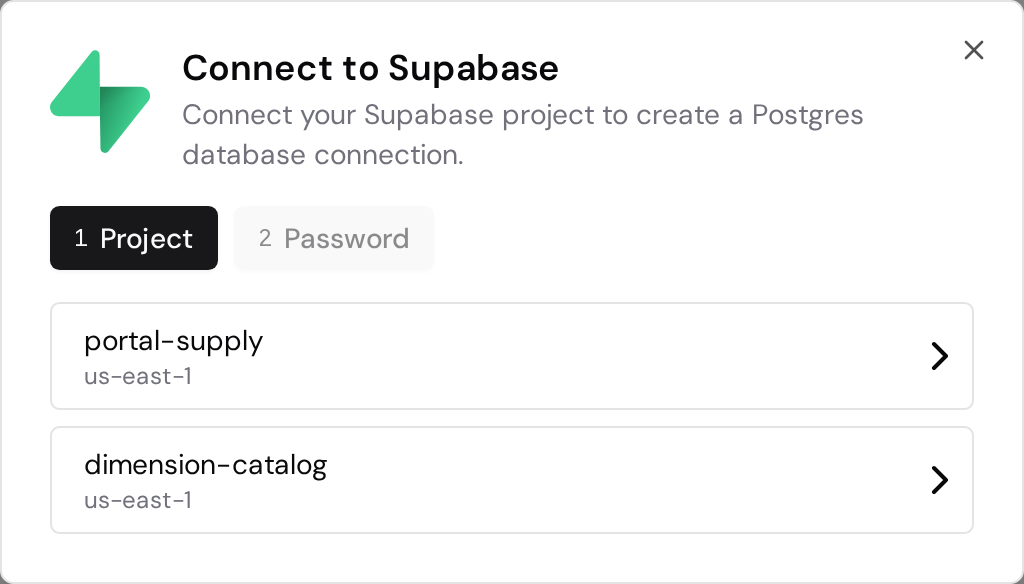
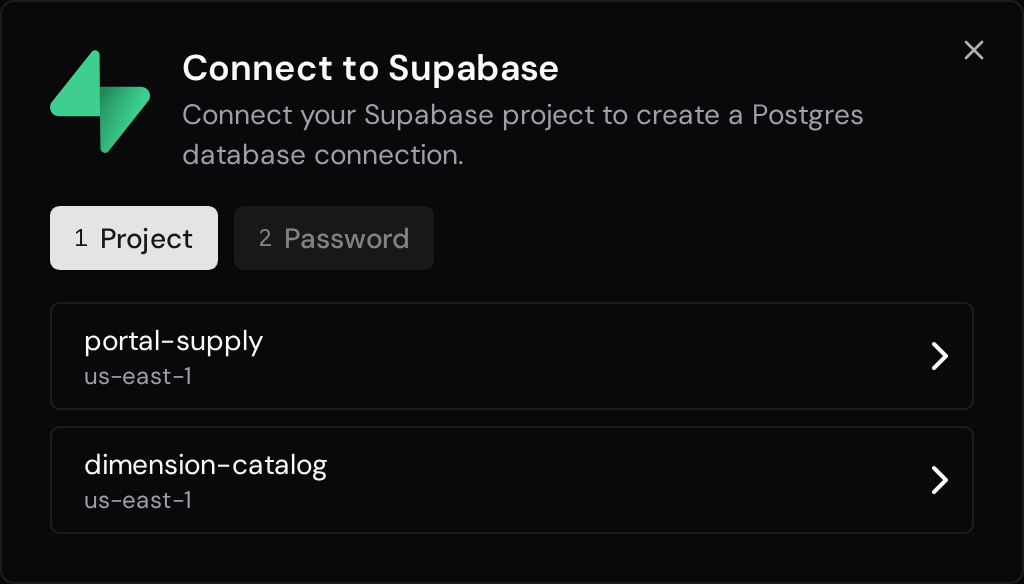
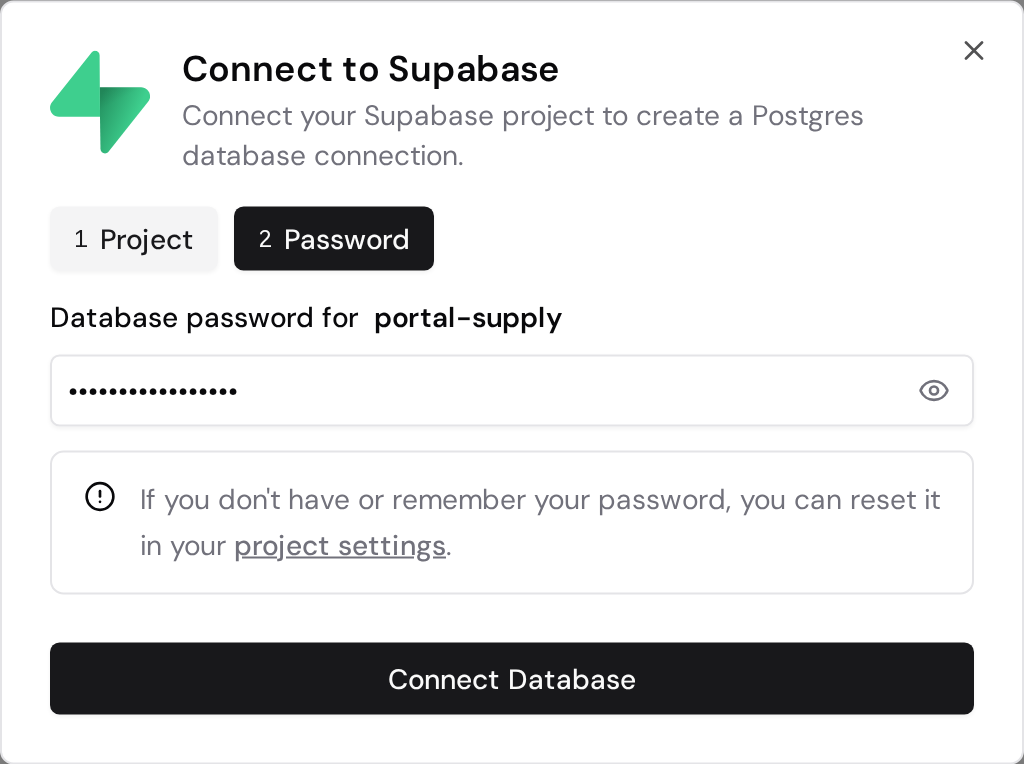
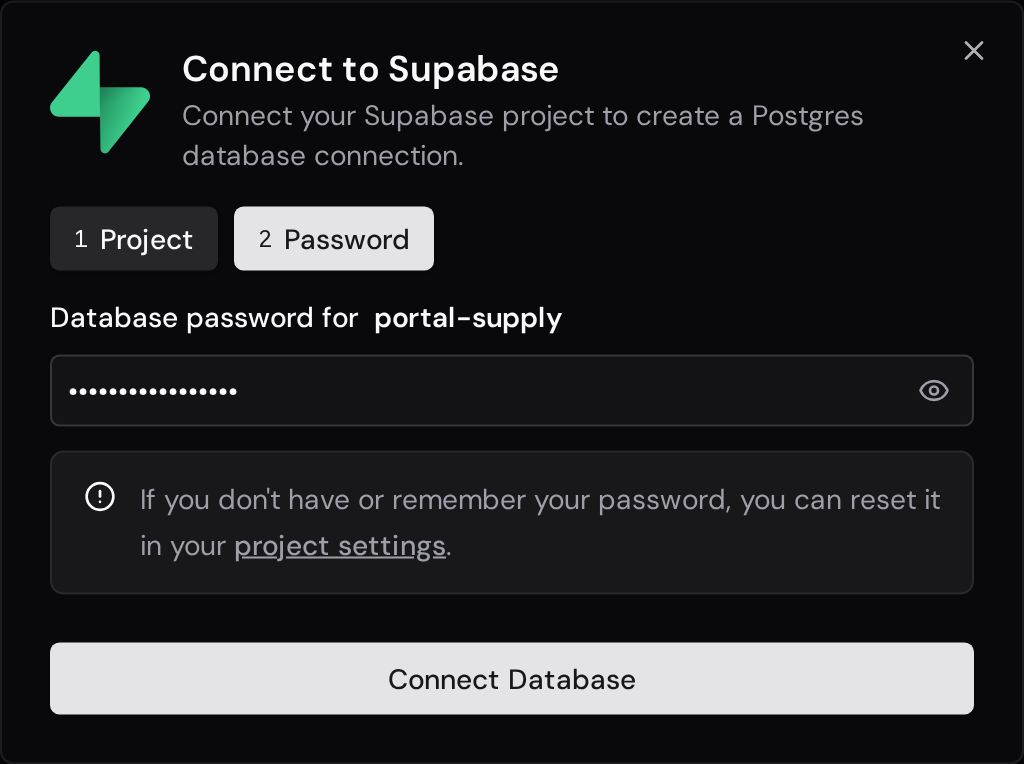
- Enter your database password and click Connect Database
- Review the selected project and environment variable, then connect it. You can optionally trigger an immediate redeployment
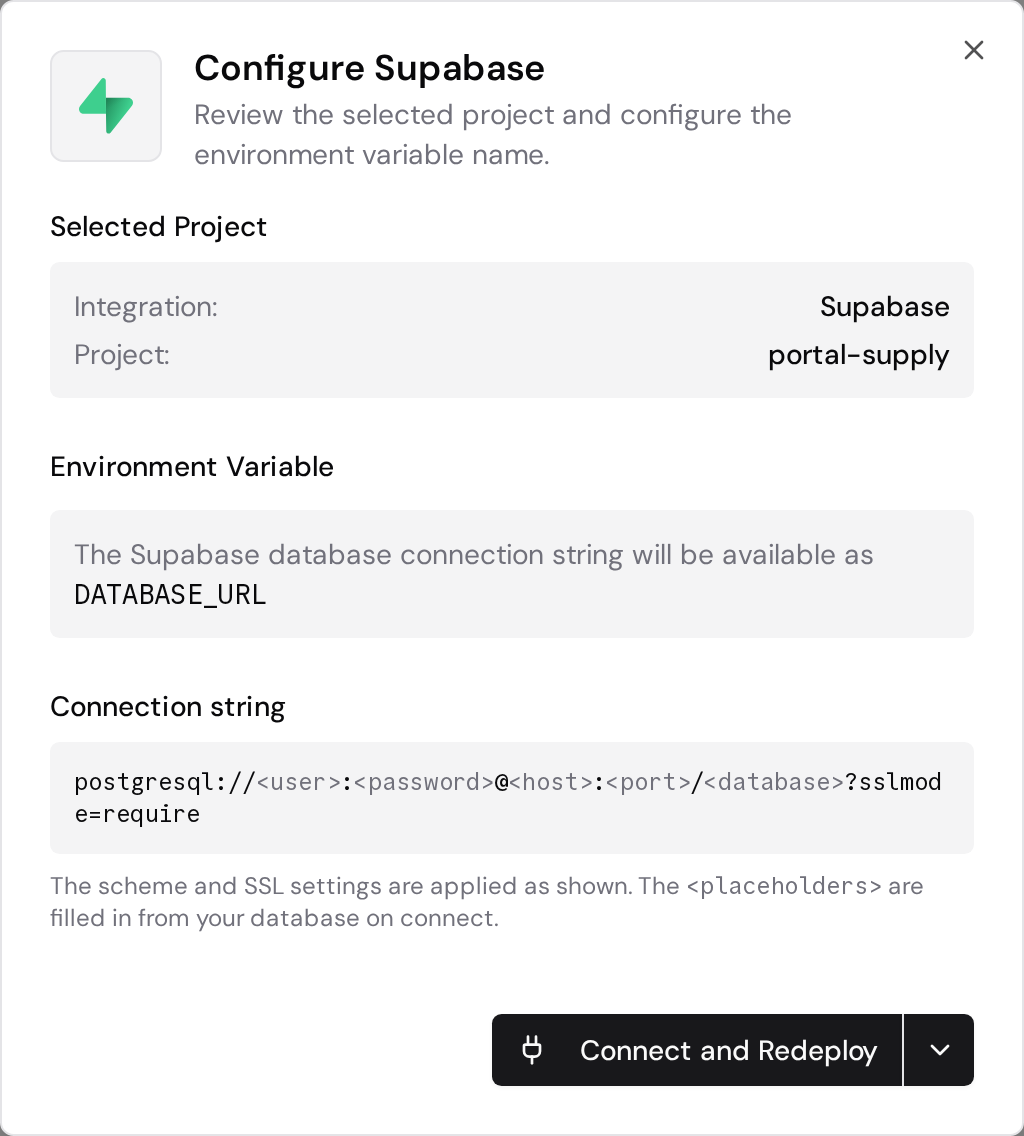
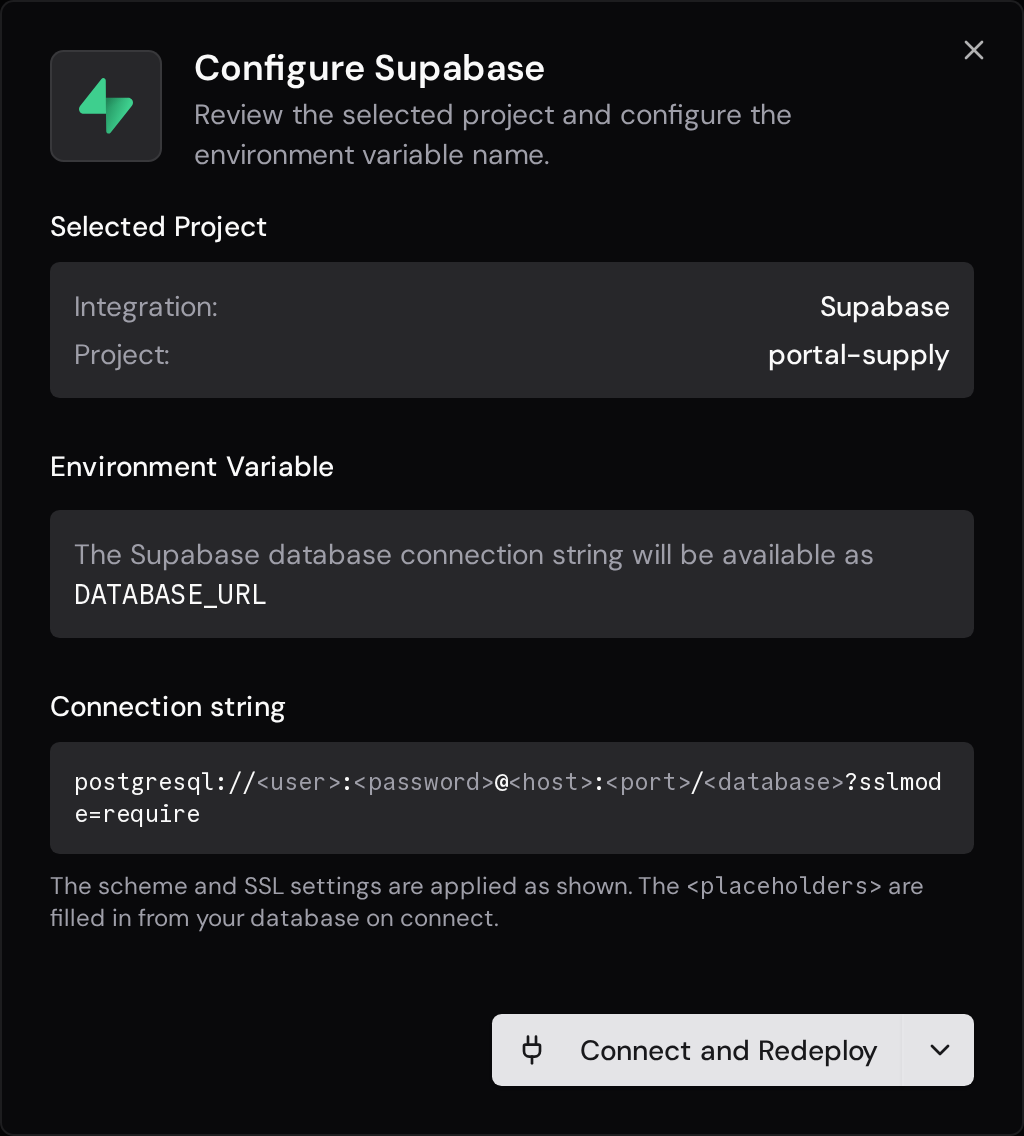
FastAPI Cloud will automatically create a DATABASE_URL environment variable with the full PostgreSQL connection string and store the credential as an encrypted secret.
Environment Variable
Section titled “Environment Variable”The default environment variable name is DATABASE_URL. You can customize this when connecting (e.g., SUPABASE_DATABASE_URL if you already have a DATABASE_URL in use).
Usage in Your App
Section titled “Usage in Your App”Here’s an example of how to use your Supabase database connection automatically available via the DATABASE_URL environment variable, in a FastAPI app with SQLModel:
import os
from fastapi import FastAPIfrom sqlmodel import Field, Session, SQLModel, create_engine, select

class Hero(SQLModel, table=True):    id: int | None = Field(default=None, primary_key=True)    name: str = Field(index=True)    secret_name: str    age: int | None = Field(default=None, index=True)

# The database URL is automatically injected as an environment variableengine = create_engine(os.getenv("DATABASE_URL"))

def create_db_and_tables():    SQLModel.metadata.create_all(engine)

app = FastAPI()

@app.on_event("startup")def on_startup():    create_db_and_tables()

@app.post("/heroes/")def create_hero(hero: Hero):    with Session(engine) as session:        session.add(hero)        session.commit()        session.refresh(hero)        return hero

@app.get("/heroes/")def read_heroes():    with Session(engine) as session:        heroes = session.exec(select(Hero)).all()        return heroes